

Spectra |
Transform video and audio to art.




Downloadable Settings Files
Parameter values, along with color and audio data, can be stored in settings files, which have file extension 'spectra'.
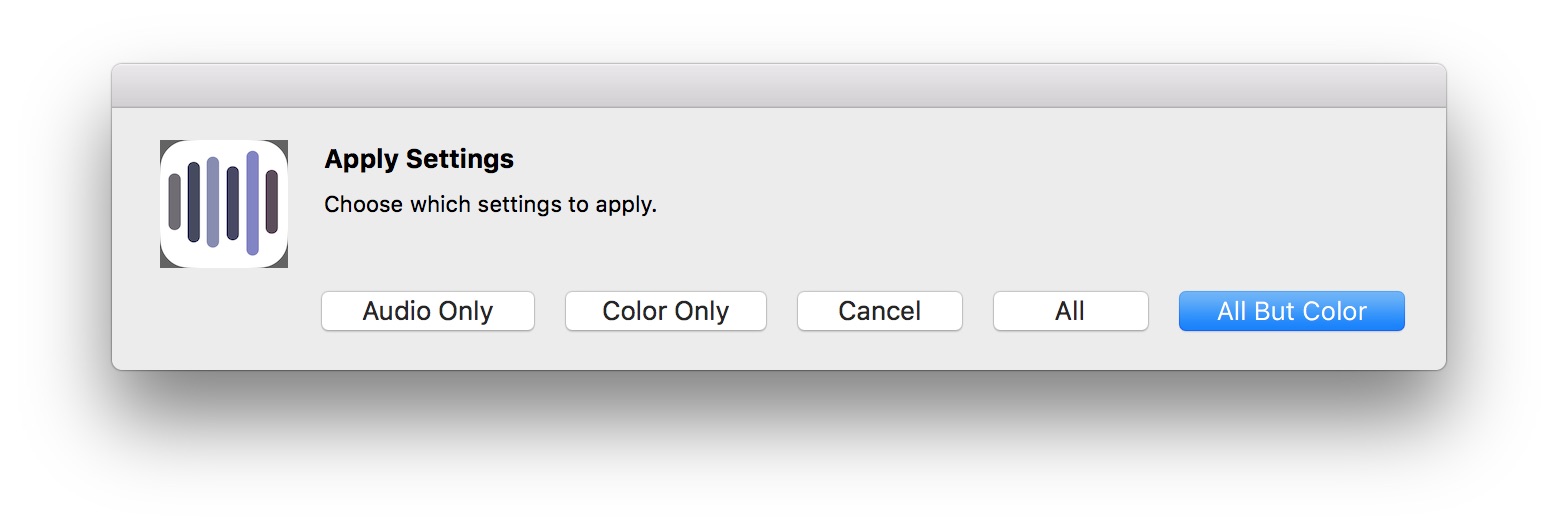
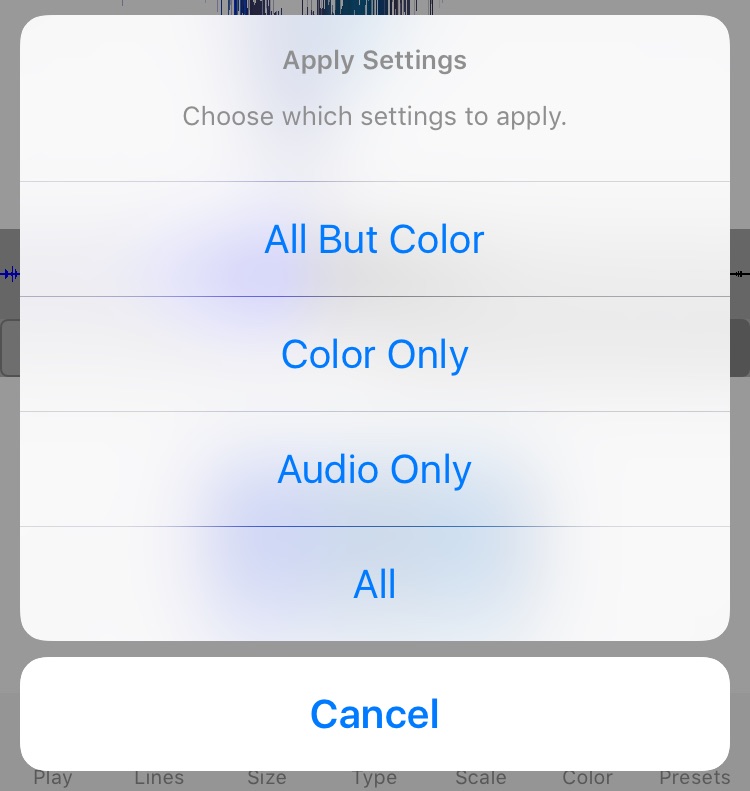
When you open a settings file you have an option to apply:
• All the settings
• Only the color data
• Only the audio data
• All settings except the color data
On the Mac this choice is presented as a dialog:
On iOS as an alert:
After settings are applied you can of course use the parameter controls to modify the graphics ad then save as another settings file.
Each platform enables you to either save settings to the 'My Settings' table, using the 'Save My Settings' button or menu item, or to a file external to the app, such as in iCloud Drive or delivered as an attachment in an email.
In addition to the Built-In settings table in the app, extra settings files are provided here and also in a webview window of the Mac app you can access using the 'Show More Settings' button at the bottom of the presets table.
Drag the links below into your 'My Settings' table to load them from the webrowser into Spectra.
You can also access these same 'more settings' by select 'Show More Settings' in the File menu on Mac or iOS:
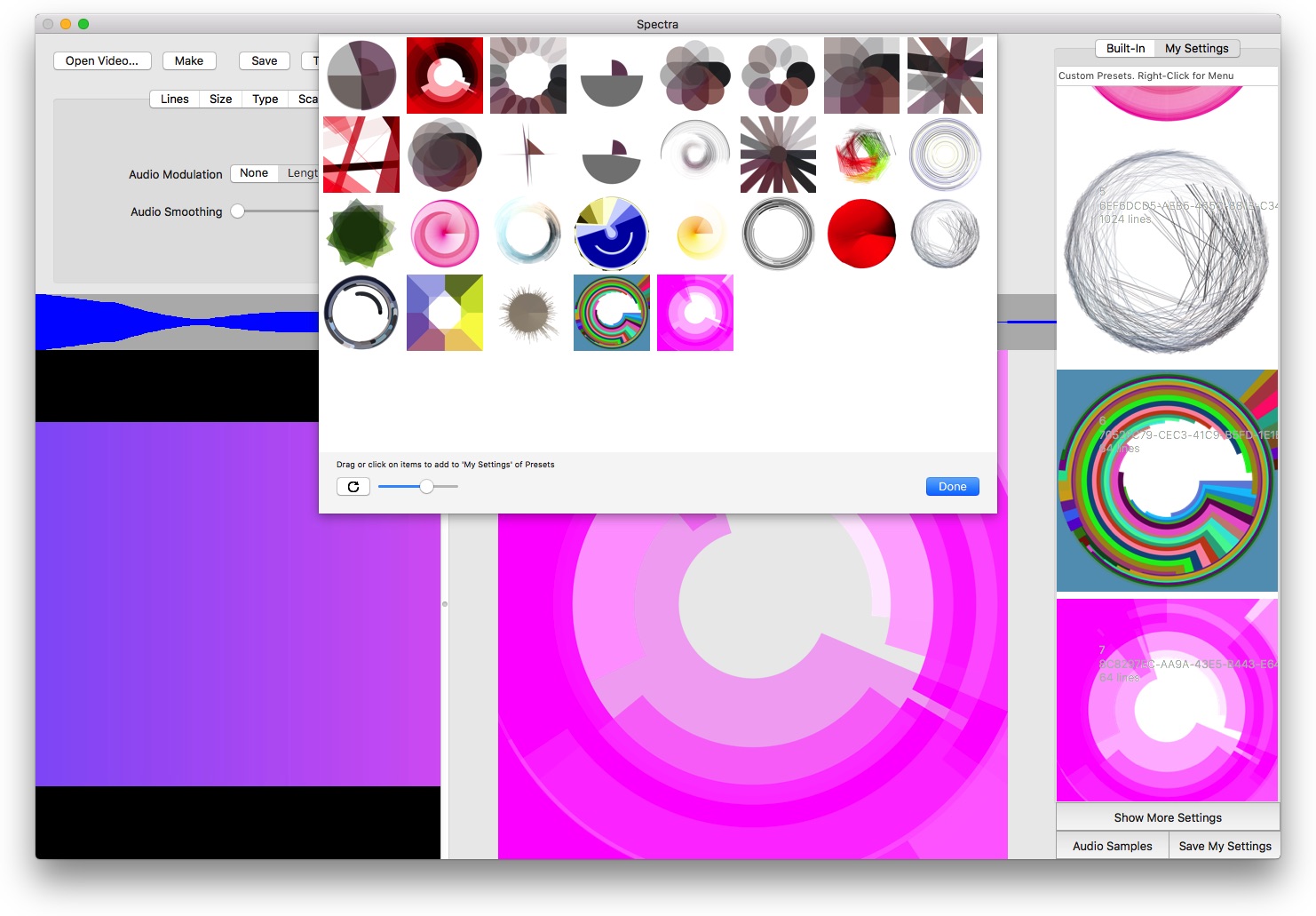
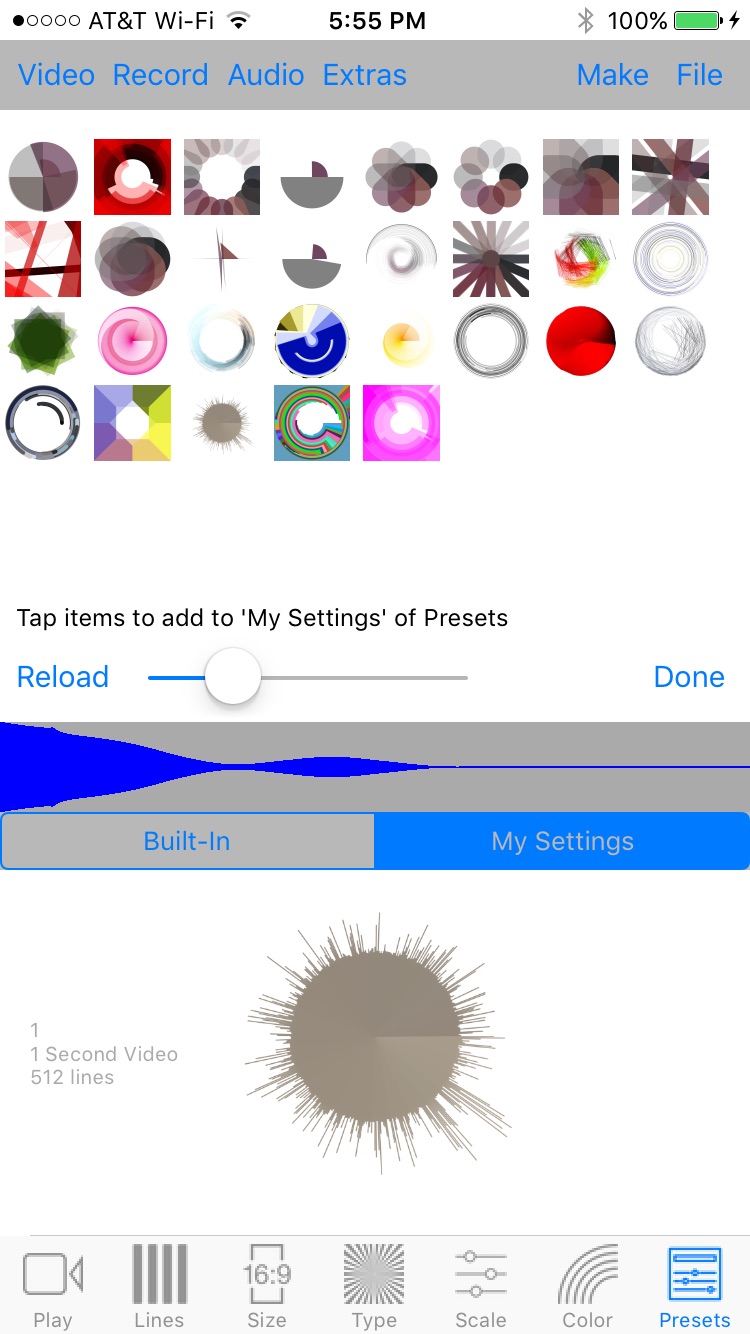
Like the built-in presets in the Settings table of the Spectra window these settings were created using Spectra.
Changing Settings Files Extensions
When you download any setting file below to the Mac or mobile device be sure the file extension is set to 'spectra' (For example your browser may pick an extension such as 'xml'). This way the file is associated with Spectra, and it proper icon will be displayed, and the file will then be opened in Spectra.
Changing Extension in macOS
Changing the file extension on the Mac is fairly easy using the file's 'Get Info' window. Select the file in the Finder and type command-I to open the file inspector for the file:

Change the extension to 'spectra' by removing 'xml'.

Confirm the change.

Now the file can be opened by Spectra.
Changing Extension in iOS
When files are downloaded by Safari they will be placed into the 'Downloads' folder. Again the extension may be wrong, and 'xml' may be appended to the filename.

In iOS the settings files can be downloaded in Safari using the 'Download Linked File' option from the menu that displays when you tap and hold on the icon for the settings file.

To change the filename extension make sure that the option to show extensions is on. In the Files app tap on the ellipses icon in to open a menu, and select 'View Options'.

Turn on 'Show All Filename Extensions'.

Now the filenames show the extensions. Tap and hold on the file to remove the 'xml' extension and confirm the alert.
Now the file can be opened by Spectra.
















































































Try the demo. Fully functional. |